


Igor Web can unblock your mobile devices stuck in a bootloop.
This is a common issue with Android tablets and phones (not so with iPhones), good news is : we can help you get out of this restart cycle.
How to unblock a phone or tablet stuck in a bootloop ?
A bootloop will get you to the start screen, but not much further.
How to unblock your device when it's restarting in a loop ?
As each brand is different, we'll write general guidelines rather than a tutorial. Each device having its own specificities, it would be an immense task to research all of the different ways to unblock them. However, the general steps are always the same, that's where this article comes in handy.
Table of contents
- Introduction
- What causes a bootloop ?
- Step 1 : getting out of the loop.
- Step 2 : clear cache.
- Step 3 : factory reset the mobile or tablet.
- Step 4 : enter download mode.
- Step 5 : download your device's firmware.
- Step 6 : install firmware via computer.
- How to avoid a bootloop ?
- Conclusion.
- Ressources.
From step 3 you need to factory reset the device, which clears out all your data, that's why it's important to frequently backup your pictures and files !
What causes a bootloop ?
The most frequent cause is a phone or tablet reaching 0% battery during a system update (the bi update, not app update via the Play Store).
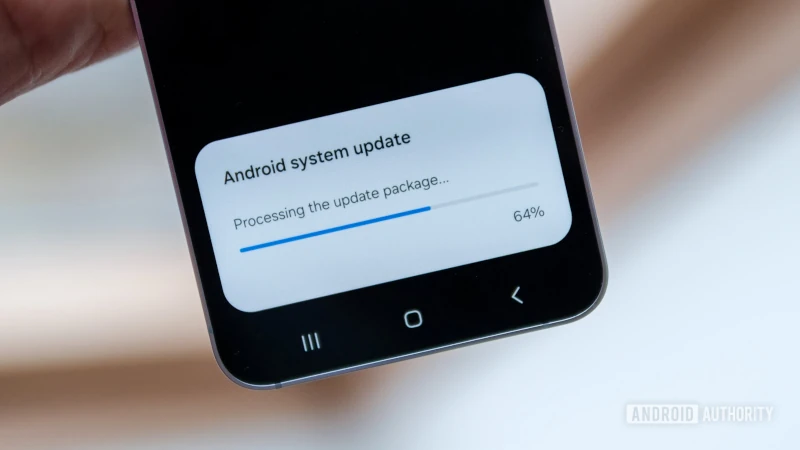
We're talking about system updates.
These updates affect the very core of your system (often what we call the kernel), which means that interrupting them can be fatal to your operating system integrity, which makes the device unable to find a viable environment at boot, thus getting stuck.
When it happens on a computer, we can easily access the boot manager or use a recovery live-environment (Grub rescue, Windows recovery environment an such), and "rebuild" the system where it got interrupted, but on an Android device, (same for Apple by the way) it is much more complex, in no small part because the storage partitions are encrypted, and cannot be accessed without your permission : and how could you give your permission if you cannot start the device ?
Luckily, a mini "repair environment" exists, which we will see right now :
Step 1 : getting out of the loop.
Android possesses a minimalist text-based recovery environment, which allows you to try a few options to save your system.
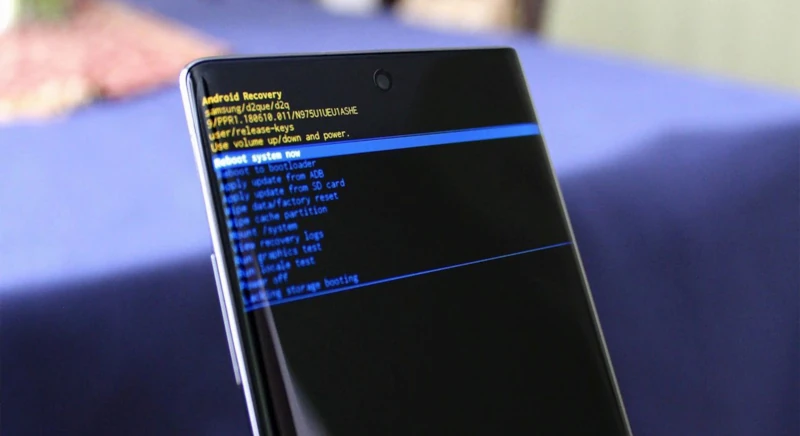
Example of recovery mode interface.
To enter recovery mode, you need to press and hold a combination of volume and power keys during boot. Each phone and brand has its own combination, most often it is holding Volume up and power button together during the boot sequence.
A list of key combinations is available here !
To browse the recovery menu, use the volume up and down keys, and power to confirm.
If you got there, congratulations, you can save your device. If you cannot enter recovery mode, maybe try to let your mobile charge fully, it needs some battery power to go initiate the recovery mode.
Step 2 : clear cache.
Using the volume buttons, go to the "Wipe cache partition" option (on some devices it is not available) then confirm with the power key.
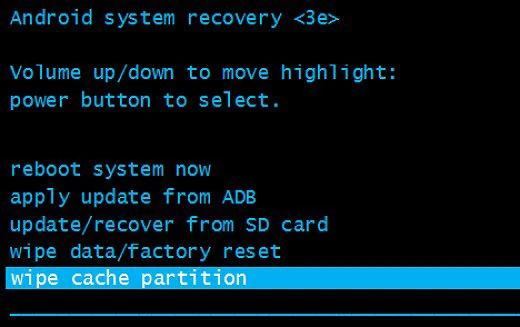
Select "wipe cache partition".
Your tablet or phone might ask you to confirm, if you choose wipe cache there is no data loss, cache meaning temporary files.
You are then shown the main menu, scroll down to "Reboot system now" and select it.
If all went right, congratulations, your phone or tablet will now reboot normally, there's nothing else to do. If it didn't work out, you need to proceed to the next step, but now there will be data loss, so think about it.
Step 3 : factory reset the mobile or tablet.
Still in recovery mode, go down to "wipe data/factory reset" (the exact sentence differs on some mobiles, but it should be there), by selecting this, your device is factory reset, and everything on it is wiped clean.
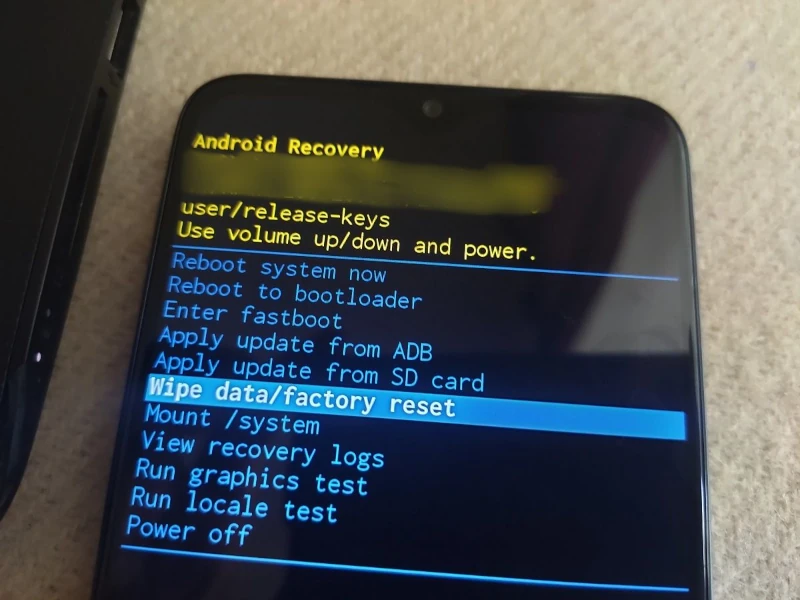
Choose "wipe data/factory reset".
As before, you are then shown the main menu, scroll down to "reboot system now" to restart your mobile.
If it worked, awesome ! Let your device reboot slowly and then you will have to set it up just like when you bought it.
Else, let's go on to the next step, manually reinstall the device firmware...
Step 4 : enter download mode.
This time, things depend once again on your phone or tablet brand. To tell you the truth, the bootloop is mostly a Samsung situation, for reasons which are explained at the bottom of this page, so for a Samsung device : hold volume up and volume down for seven seconds then insert a USB cable in your phone which is connected to a computer on the other end (difficult to pull out, so try it many times). For other brands it rarely happens, but you can find key combinations on the Internet.
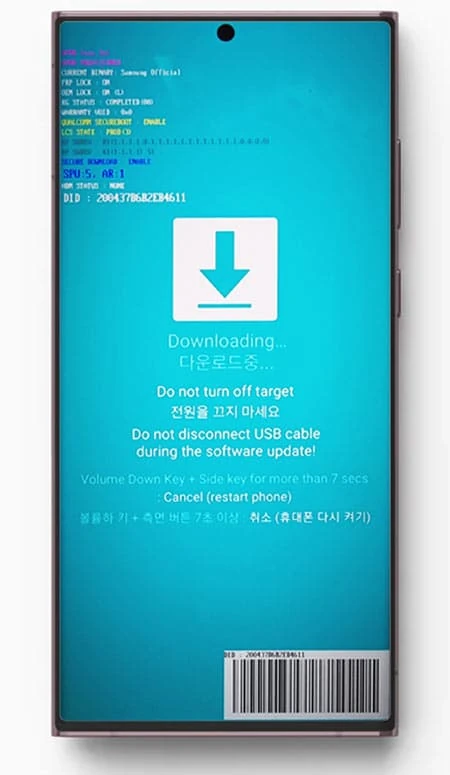
Samsung's download mode screen.
On Samsung devices, you are brung to a blue screen with Korean script, on Redmi phone there is a cute rabbit and an Android logo (they call it Fastboot)
This mode, as the name implies, is used to receive updates manually via USB, so keep the USB cable connected to the mobile and computer at all times when in this mode.
Worried about making a mistake or losing your data?
Igor Web handles this procedure safely for individuals and businesses: remotely, at our workshop in Pouligny-Notre-Dame (36), by mail-in, or on-site across departments 36, 23, 18, and 03.
Step 5 : download your device's firmware.
The firmware is really one of the core layers of your phone's system, you can compare it to the software version of your device.
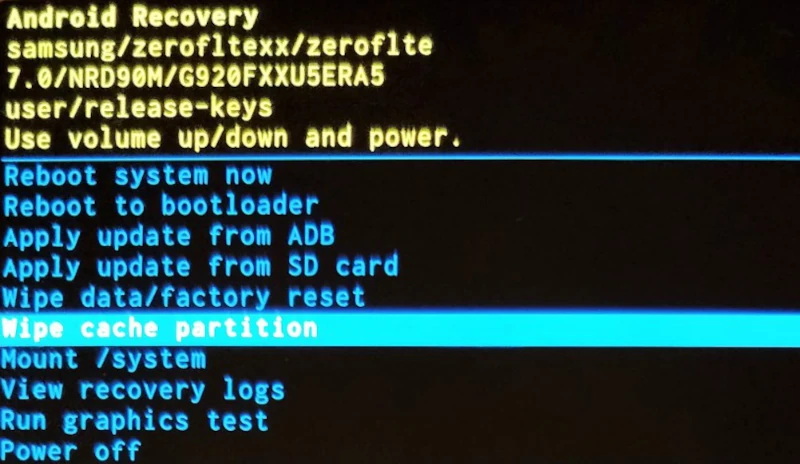
Version number is shown on the top of this screen.
To know your current firmware, you can head on to the recovery mode and find it on top of the screen, e.g. : G920FXXU5ERA5 in this picture (believe it or not, these numbers actually make sense, they describe the region and language of your mobile for example.)
You then have to look for it on the Internet, which can be hard depending on the phone or tablet's make.... Samsung one are relatively easy, they are here for example : https://samfw.com
To find the correct firmware, check the reference and serial number of your device on the back tab (with the barcode) or the original packaging.
The firmware files are a few Gigabytes size, and servers can be slow so be patient.
If you choose the wrong firmware, (for instance, Samsung has different firmwares for the EU and Switzerland with almost the same name), most probably the firmware will not be transferred, but it could also make things much worse for your phone, so really don't be afraid to ask for help and triple-check.
Step 6 : install firmware via computer.
We call this "flashing" the phone or tablet, and some are easier to do than others...
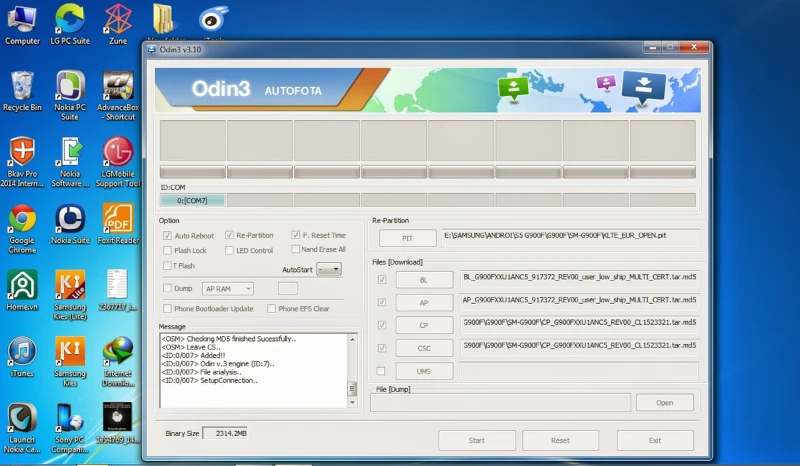
Odin is Samsung's software for flashing.
For example on Samsung devices, you almost always need to use Odin, a software that leaked from Samsung factories and which they use to flash the different parts of the firmware at the right pace.

Virtual Machine (what a pain.)
Odin is Windows only software, so if you're using Mac or Linux as we are... you need to set up a Windows VM with USB passthrough (Virtualbox does it well). Because on Linux, Wine doesn't really handle USB drivers so well. What a pain, but that's being a Linux or Mac freak, we fix stuff no matter what.
Virtual BoxFor Xiaomi you need to use MiFlashTool, which is used for Xiaomi, Redmi and Poco devices.
For some devices, you don't need anything, just ADB (Android Debug Bridge), which is installed out of the box on Ubuntu Linux, and use it to send your firmware via the command line with : adb sideload /path/to/your/file.zip
And, you might also need to install the drivers for your phone or tablet, especially for Samsung and Xiaomi.
Finally, if you sent the right firmware, with the right :
- Serial number
- Region
- Version
The update will slowly but surely install itself, don't unplug anything during transfer, and make sure to have at least 70% battery before starting.
Once finished, your phone will start, and you will be greeted by the first startup screen once it's finally unstuck.
If it's still not working...
If it still didn't work, which I don't wish for you, either it was not the right firmware, or there is a hardware problem on the motherboard, which requires a complete replacement of the phone or motherboard. (It is rare though, and only about certain models).
Depending on the method, there is a possibility that you can keep your data after a manual firmware update.
How to avoid a bootloop ?
In most cases, the cause is the same : a smartphone or tablet turning off because of an empty battery during a system update (the big ones, that make your device reboot).
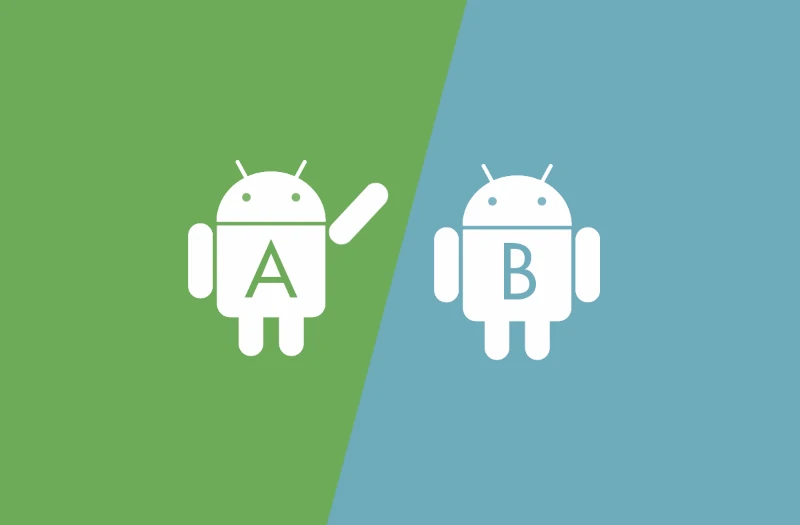
Seamless Android updates exist since 2016.
During these major updates, your system is changed at its very core, so if the process gets interrupted the device cannot find a healthy and full system to boot into, thus the loop.
Conclusion
We saw the main lines to get out of a reboot loop on smartphones and tablets.
This could also happen on Android TV boxes (like the MiBox), but the method is more or less the same.
Of course, each phone or tablet is different, but on the whole they all function the same way (Android ones I mean).
Q&A
Frequently asked questions on the issue... 
Any questions ?
-
Why didn't they do something to prevent this ? They're irresponsible !
A security exists since 2016 ! Google, Android's developper, made a proposition to phone makers to use A/B updates, but it was never mandatory. During an A/B update, your system is cloned (A and B), the update takes place on the B, and the A stays at the previous version, so if things go wrong, the mobile can still boot on the A partition.
However, for years, some makers (Samsung, I'm talking about you !) have been reluctant to implement A/B updates, for various reasons, and that's why the bootloop is very often a Samsung situation.
The boot manager is not being cloned during A/B updates, so if it gets corrupted during the update, you could, theoretically, not boot into anything even if the backup partition exists. (It's very theoretical, it almost never happens.)
-
What's a softbrick ?
A "softbrick" is when your phone is not usable, but still repairable via the recovery or download mode. It's different from what we call a "hard brick".

A plastic brick.
With a true brick, a "hardbrick", your tablet can not even enter the recovery mode, it has turned into an inert brick...
-
Do I always need a computer to unblock my phone ?
Not always, the phone can be unblocked by itself, using only the recovery environment, or I've done it in the past using another smartphone and the Termux app, sending ADB commands. (It was even smoother than on a computer.
-
Is it easy to unstuck your phone or tablet from a bootloop ?
It all depends, if you just need to purge the cache or force a reboot, it's straightforward. However when you need to manually send a firmware it gets complicated because you really need to be careful on what you send =to the device, plus, connectivity can be a pain when you need to install specific software and drivers just to "talk" to your phone.
-
Why can't we just access the phone storage like with an external hard drive ?
This is because your device's memory is encrypted, otherwise anybody stealing your phone could just plug it into his laptop and check what's inside, especially your bank details and whatnot.
Moreover, even a computer hard drive can be encrypted, in this case it will not be readable if you just plug it into your computer.
Ressources
- Enter recovery mode, key combinations.
- Android official documentation regarding A/B updates. (for nerds)
- Samsung finally adopts A/B updates (or really ?)
- Samsung firmware download
- Termux, Linux terminal emulator for Android.
Need an expert to carry out this procedure or support your organization?
Take no risks with your hardware or data. Igor Web Assistance provides fast, reliable support for both home users and professionals: