


Here is a tutorial explaining how to create your own private Webradio !
There are many ways, both commercial and open-source, to do this, here we use Icecast, which has proven its strength since it was created and is still in use since 1998 !
How to setup your on Webradio over local network ?

Icecast, a reliable and strong open-source solution, since 1998.
How to set up your own Webradio over local network using Linux ?
Icecastallow to host and cast your webradio from a Linux computer. For our tutorial, we limit ourselves to local network as public broadcast would lead to questions of cybersecurity, and royalties... But in any case, it is quite simple to then make the shift once the radio is set up.
Icecast being only a streaming server, we need to send it the audio to be streamed. There are many options but we chose ezstreamé, which as the name implies is easy to use.
Table of contents
- Introduction
- How do ezstream and icecast work together ?
- Step 1 : setup icecast.
- Step 2 : setup the playlist.
- Step 3 : optionnal : add jingles and shuffle the playlist.
- Step 4 : install ezstream.
- Step 5 : setup ezstream.
- Step 6 : start ezstream and listen to your radio.
- How to play it from VLC mobile ?
- Conclusion.
- Ressources.
Note: this tutorial was written for Ubuntu 24.04 LTS, but should work fine with 26.04 LTS.
How do ezstream and icecast work together ?
Here is a diagram explaining how icecast and ezstream work together :
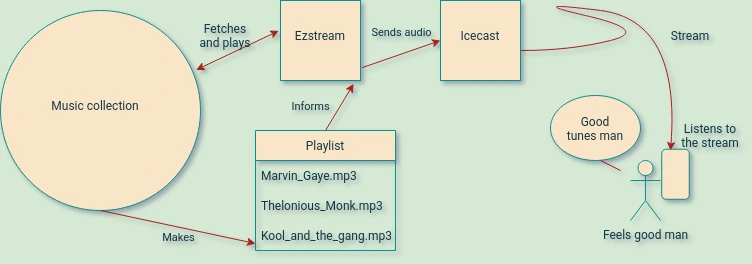
Diagram explaining how icecast and ezstream function.
Icecast, as the name implies, is a casting server, its job is to cast an audio stream over a network, and manage connections and listeners.
The stream is created and sent by another program, here we use ezstream, but others exist, such as butt (broadcast using this tool)" best suited for live microphone streaming, or Mixxx if you're more into DJ-ing.
Here we chose ezstream, as we're just looking to read a playlist and send it to icecast. The list is a simple .txt file, and contains all the tunes you want to send, for example : "/home/user/Music/marvingayee.mp3".
Ezstream reads the list, fetches the .mp3 (or .ogg) in question, decodes them and sends them to icecast, which will then play the audio via a stream.
This stream can then be accessed at "http://your.IP.address:8000/stream.m3u" and can be listened to from any device with a web browser : computer, mobile, even a smart TV with the VLC app.
Almost everything is done via command line, which means it is low on resources, making it easier on your computer compared to GUI-only solutions.
Step 1 : setting up icecast.
In Ubuntu, open a terminal with CTRL+ALT+T.
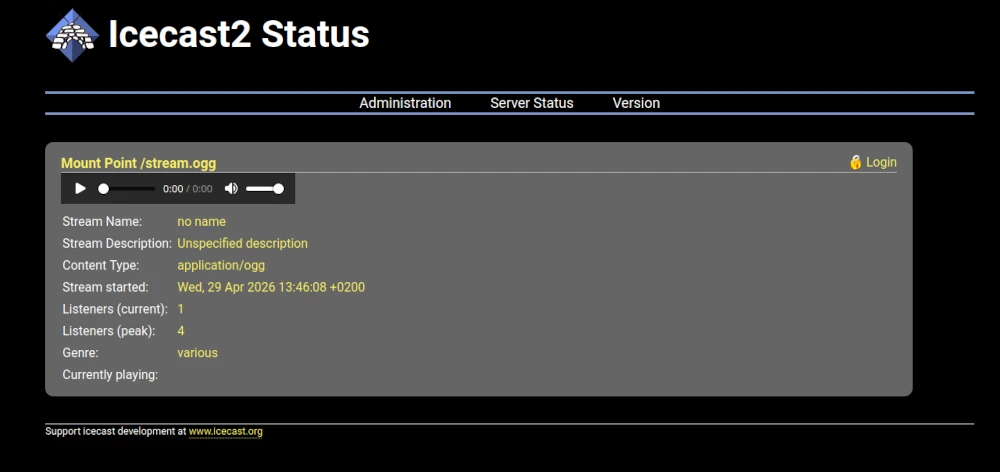
Icecast welcome page.
Install icecast and activate it :
sudo apt install icecast2
Icecast will ask you some configuration information during installation, or the passwords input what you want, for the hostname, you can keep it empty or type "localhost" if you use the webradio only on a local network.
Once setting up is finished, enable and start the icecast service :
systemctl enable icecast2 systemctl start icecast2
To stop icecast, just type :
systemctl stop icecast2
And to disable it and remove it :
systemctl disable icecast2
puis
sudo apt remove icecast2
To check icecast status open "localhost:8000" in a web browser and you should be greeted by the icecast welcome page !!
(Or your computer's local IP followed by :8000 if you access it from the LAN.
Step 2 : setting up the playlist.
Now, we're going to set up an .mp3 (or .ogg) playlist that will be sent by ezstream to icecast.
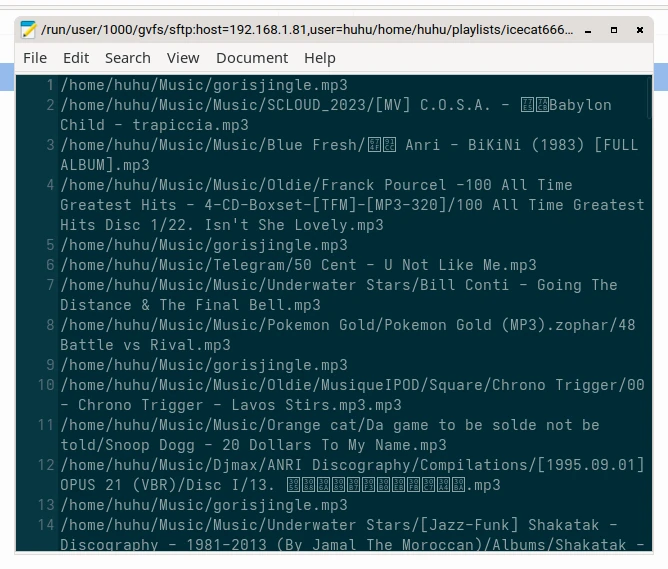
Let's suppose your music is located in : "/home/user/Music". We use the following command :
find /home/user/Music -name *mp3 -type f > /home/user/playlists/playlist-icecast.txt
find will look for all .mp3 files (once again, you can replace *mp3 pby *ogg or any other extension) in the specified folder, and list them by alphabetic order, then output this list in a file name playlist-icecast.txt, located in /home/user/playlists .
Step 3 : (optional) : add a jingle and shuffle the playlist
The created playlist can be a bit boring, so let's add a nice jingle every two songs ! And shuffle everything.
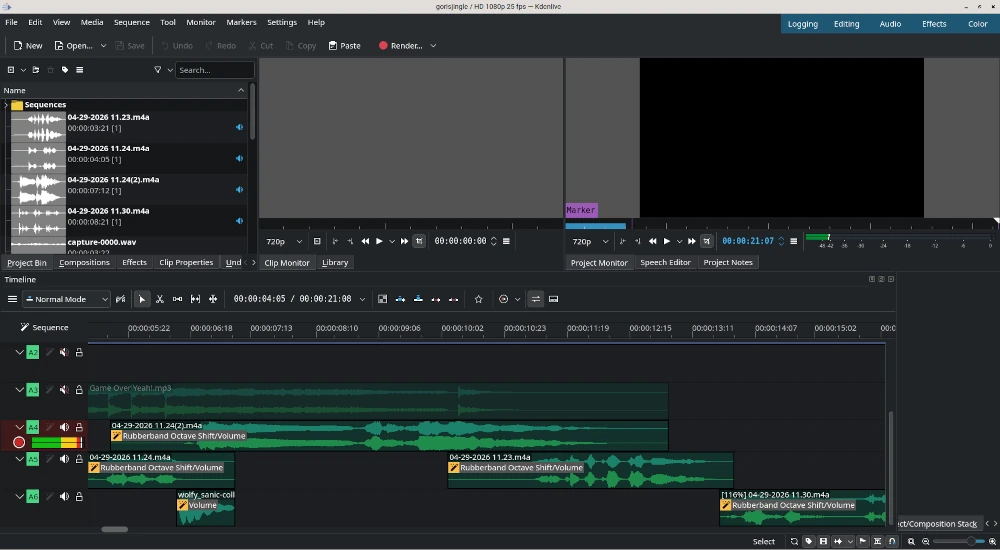
You can use KDEnlive to create the jingle (it does audio too)
First, let's shuffle the tracks.
shuf /home/user/playlists/playlist-icecast.txt -o /home/user/playlists/playlist-icecast-random.txt
shuf (shuffle) will randomize your list's play order and output it to a new file named: "playlist-icecast-random.txt"
Then, the jingle being named "myjingle.mp3", let's insert it every two tracks.
awk ' {print;} NR % 2 == 0 { print "/home/user/Music/myjingle.mp3"; }' /home/user/playlists/playlist-icecast-random.txt > /home/user/playlists/playlist-icecast-random-with-jingle.txt
Here, awk is adding every two lines (NR % 2) a new line containing "home/user/Music/myjingle.mp3" and output the result to a file named : "playlist-icecast-random-with-jingle.txt".
You can tweak the awk parameters to add other files or the frequency of jingles...
Worried about making a mistake or losing your data?
Igor Web handles this procedure safely for individuals and businesses: remotely, at our workshop in Pouligny-Notre-Dame (36), by mail-in, or on-site across departments 36, 23, 18, and 03.
Step 4 : install ezstream
sudo apt install ezstream
That's all.
Step 5 : setting up ezstream.
Let's create a folder where ezstream's configuration will be stored.
mkdir /home/user/.ezstream
Ezstream comes with configuration examples in "/usr/share/doc/ezstream/examples" , here, we use "ezstream-file_template.xml"
Copy the file in our previously created /home/user/.ezstream
cp /usr/share/doc/ezstream/examples/ezstream-file_template.xml /home/user/.ezstream
Edit ezstream-file_template.xml with any text editor, or sudo nano /home/utilisateur/.ezstream/ezstream-file_template.xml and modify a few lines :
password : your previously set icecast password
mountpoint : if you want a custom stream name, e.g. : localhost:8000/mycrazybeats.ogg
filename : the path to your playlist !
e.g : /home/user/playlists/playlist-icecast-random-with-jingle.txt
Save and quit. (with nano CTRL+X then Y)
Step 6 : start ezstream and listen to your radio.
To start ezstream, and keep it running in the background, use "nohup" before the ezstream command :
nohup ezstream -c /home/user/.ezstream/ezstream-file_template.xml
You can quit the terminal session and ezstream will stay active in the background.
Later, if you want to stop ezstream use :
pidof ezstream
Take note of the pid (number) given, example : 12345
kill 12345
But for now, congratulations ! Your stream is live !
To listen to it, go to "your.ip.adress:8000/stream.ogg" from any browser, or the IP of the computer where icecast is running (to see it, use the ip addr show command and choose the one starting by 192.168.1....)
What if it doesn't play mp3 ?
Indeed, in our case we had to install MadPlay to allow ezstream to decode .mp3 files :
sudo apt install madplay
How to listen to the stream via VLC mobile ?
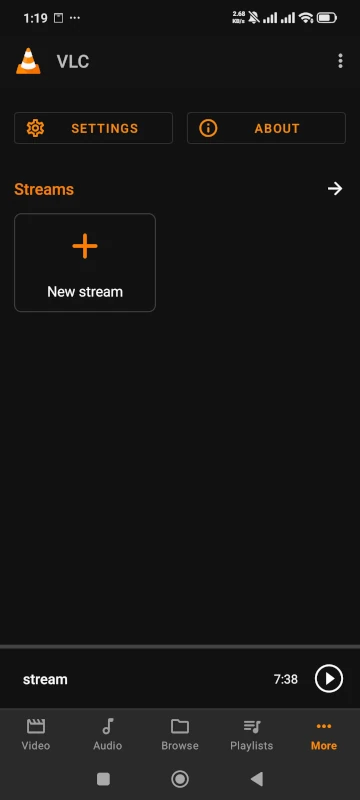
On VCL mobile, go to the "More" tab, then "New Stream" and input your radio's address, you can save it as a favorite for quick access.
The same goes for a smart TV connected to your LAN, using the VLC app !
Conclusion
We saw how to set up a private webradio on a local network using icecast and ezstream. This tutorial was written for the late 24.04, but should still work with Ubuntu 26.04, Debian, openSUSE (with a bit more work on the firewall and codecs...), or any Linux distro, as icecast is here since the beginning of Linux, and should stay until the end of the world or almost (yeah, that's how sturdy it is.)
Instead of Ezstream, we could use other solutions such as LibreTime, Mixxx, butt (broadcast using this tool), but ezstrem had the advantage of being available without a GUI, which is useful if your icecast session is hosted on an headless server accessed via SSH. (Which means : without a screen, on a remote computer). It's also a lightweight option, which works fine on mini PCs or old hardware, making it a good recycling project.
In the future, why not set up LibreTime to gain calendar and hourly schedule options ! But that's a lot of work, and not the same kind of radio.
Q&A
Here are some frequently asked questions :
Any questions ?
-
Why use icecast which dates back to 1998 and not...
Yes, there are better, newer options, but icecast does the work, it just works, is stable and can be hardened in case you need to open ports. Moreover, it's a lightweight option, and benefits from almost thirty years of optimization and continued usage in the open source community : like they say : it's rock solid.
-
Can I program this or that track at this or that hour ?
Except if you have exception organization skills, not really. Ezstream just reads your playlist and plays tracks one after the other. If you want to set up an hourly program, you can use LibreTime, but it's more complex to set up and heavier on ressources (it's more of a container or VM solution). You could also use Liquidsoap, which is a radio schedule programming language that allows you to set up your broadcast programs. It is used by some major radios such as RadioFrance which also broadcasts on FM all over the country (In France).
-
And if I really have good organization skills
Kdenlive can also be used for audio processing. Ok, first you should prepare some blocks of an hour (or any given time) by combining your music tracks, including jingles if any. You can use Audacity, Ardour, or Kdenlive to prepare the blocks, as they allow you to visually combine all the .mp3 or.ogg tracks. Then order your one-hours blocks the way you want in your playlist.txt, and start ezstream at the exact time you wish. For example, you could install "at" which is a little command line program allowing to start a command at a certain time.
sudo apt install atsystemctl enable at --nowat 9:00Then type your ezstream command :
nohup ezstream -c ...
This way your ezstream will start at 9 AM, and will play your one-hour blocks of audio tracks in the given order.
Using this technique, you can indeed prepare a scheduled playlist with no GUI.
For really fine tuning and visual setup of the schedule, of course, something like LibreTime can be better.
-
How to make the station available to the world ?
It is easy : just open the 8000 port (except if you used another port) on your router and give your computer a static IP. However, you should really secure your icecast session first with a strong password.
Some people give guides on how to set up a reverse proxy to secure the radio, I would recommend that you do it if you really want to make your radio public.
Personally, I set up a Cloudflare Zero Trust Tunnel to allow only selected users to access the stream, even outside of the local network, but that would require another tutorial ! (Maybe later)
-
How to update my playlist ?
- Step 1 : stop ezstream.
- 2 : add your files in your music folder, and redo steps 2 and 3.
- 3: restart ezstream.
Ressources
Need an expert to carry out this procedure or support your organization?
Take no risks with your hardware or data. Igor Web Assistance provides fast, reliable support for both home users and professionals: